What Is a Font Changer and Why Free Fire Players Use It
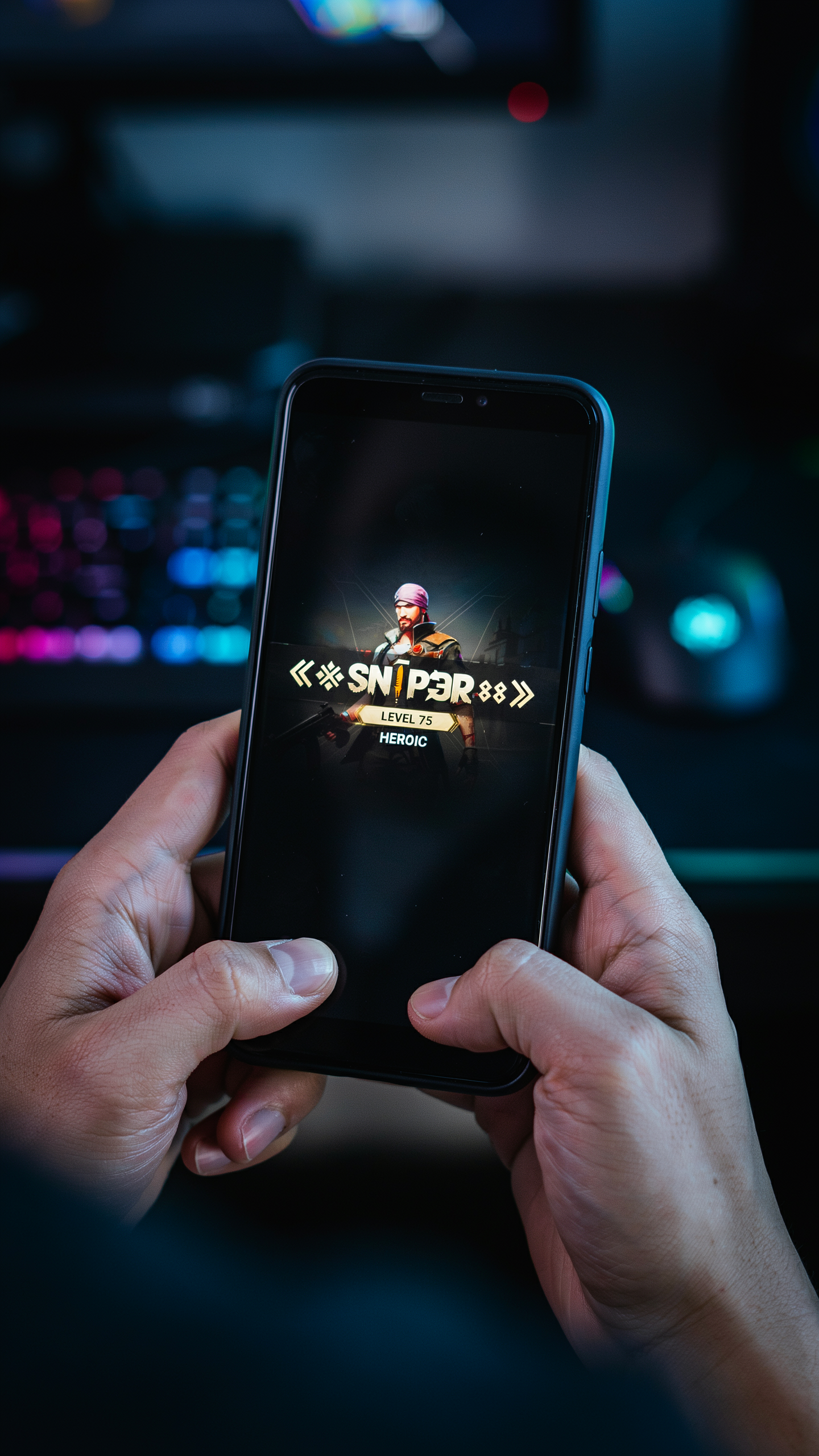
A font changer is a simple online tool that takes your normal text and instantly converts it into a variety of stylish, decorative, or unusual fonts. For Free Fire players, this is a big deal. It lets you create a unique in-game name that stands out in the lobby, on the kill feed, and in squad lists. Instead of being stuck with plain letters, you can turn your name into something that looks bold, italic, gothic, or even filled with symbols. I have used a free fire name changer many times to test different styles, and the process is always straightforward: you type your desired name, scroll through the generated font options, and copy the one you like best. The appeal is obvious. A stylish name gives you a personal brand in the game, making you more recognizable to friends and opponents alike. Many players also use a font changer to add symbols like crowns or stars, which you can find through resources like a simbol mahkota font collection. Whether you want a cool, edgy look or something cute and playful, a font changer gives you the creative freedom to express yourself without any technical skills.
Key Takeaways
- A font changer lets you instantly convert normal text into stylish fonts that work in Free Fire, making your in-game name stand out in lobbies and kill feeds.
- Not every fancy font is supported by Free Fire. Some styles break or show as blank boxes, so testing your name before committing is essential.
- Combining a free fire name changer with symbols like crowns or stars creates a truly unique identity that reflects your playstyle.
- Mobile and desktop font changers behave differently. I recommend using a mobile-friendly tool since Free Fire is primarily a mobile game.
- If your stylish name gets rejected or doesn't display, the fix is usually simple: stick to Unicode characters and avoid overloading with too many symbols.
How a Font Changer Works: Turning Text Into Font
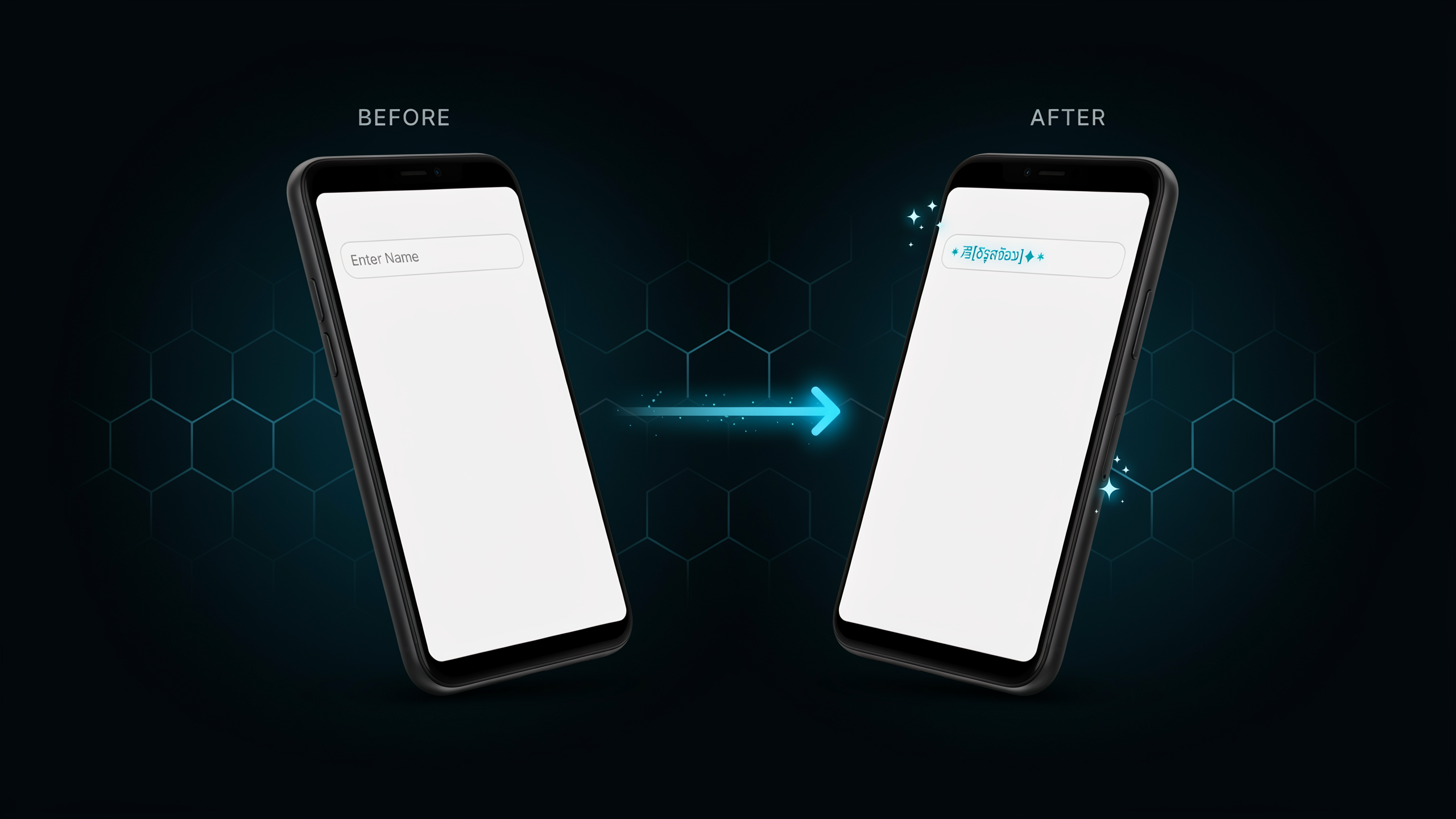
When you type a name into a font changer, you might think it's doing something magical to the letters. In reality, it's a clever trick that uses the Unicode standard. Every character you see on a screen is mapped to a code point. A regular letter "A" is U+0041, but there are thousands of other "A"-like symbols in Unicode from math alphabets, phonetic scripts, and decorative sets. A font changer simply swaps your normal letters for these lookalike Unicode characters. The result is text into font styles that appear bold, italic, cursive, or even gothic, while the underlying text remains plain characters.
This is why you can paste your stylish name into Free Fire and it works. The game sees a string of valid Unicode characters, not a different font file. I have tested this with dozens of styles, and as long as the symbols are supported by the game's text engine, they render correctly. The process is instant because there's no image generation or font embedding involved. It's a simple character mapping that happens in your browser or app.
One thing I always remind players: not all Unicode lookalikes are equal. Some symbols may display as boxes or question marks on certain devices. A good font changer, like the one we built at free fire name changer, filters out unsupported characters so your name stays readable. The key is to pick styles that balance flair with compatibility. When you understand this, you can use any font text tool with confidence. For a deeper look at how Unicode handles these characters, check out Unicode's FAQ on combining marks.
Step-by-Step: Using a Font Changer for Free Fire Names
I remember the first time I tried to make my Free Fire name stand out. I typed my plain name into a free fire name changer and watched it transform into something that actually looked cool. The process is simple once you know the steps. I'll walk you through exactly how I do it every time I want a new look.
- Open a reliable font changer. I always start by visiting a site I trust, like the one I just mentioned. It loads fast on my phone, which matters when I'm in the middle of a gaming session and want to switch my name quickly.
- Type your base name. In the input box, I enter the name I want to style. This is the normal text that will be converted. I avoid using special symbols here because the font changer works best with plain letters and numbers.
- Browse the generated font text styles. Once I hit enter or wait a moment, the text generator shows me dozens of options. I see everything from bold and italic to fancy cursive and gothic styles. I scroll through and pick the one that matches my vibe. Sometimes I want something intimidating for ranked matches, other times a cute style for casual play.
- Copy the styled text. I tap the copy button next to my chosen style. It instantly copies the converted font text to my clipboard. I always double-check that it copied correctly by pasting it into a notes app first. Some characters might not display properly in Free Fire, so I look for any weird symbols that could break the name.
- Paste into Free Fire. I open the game, go to my profile, and tap the edit icon next to my name. I paste the new stylish text and save. If the game rejects it, I go back to the font changer and try a simpler style. Free Fire has limits on special characters, so I stick to fonts that use basic Unicode symbols.
One thing I learned the hard way: not every font text style works in the game. I once spent ten minutes picking a fancy script only to get an error. Now I test with a short name first. The whole process takes less than a minute once you get used to it. It's a quick way to refresh your identity in the game without spending any diamonds.
Best Font Styles for Free Fire: Readability vs. Style
When I first started using a font changer for my Free Fire name, I went all out with the fanciest Unicode styles I could find. My name looked incredible in the preview, but in the match lobby, it was a blurry mess that nobody could read. That taught me the golden rule: style means nothing if your squad can't call you out by name. The best Free Fire names balance eye-catching design with instant readability. I have tested dozens of styles to find the sweet spot.
For pure readability, bold serif and bold sans-serif Unicode styles are my top picks. These use characters like 𝗕, 𝗖, 𝗗 (mathematical bold) or 𝘽, 𝘾, 𝘿 (bold italic), which render cleanly even on lower-resolution devices. I recommend them for players who want a subtle upgrade without sacrificing clarity. A stylish text converter that offers these options will usually label them as "bold" or "bold italic," and they work reliably across Android and iOS. Avoid overly ornate scripts like cursive or Fraktur for your main name. Those are better suited for guild tags or profile bios where legibility is less critical.
If you want something more eye-catching, double-struck styles (𝔸, 𝔹, ℂ) and monospace variants (𝙰, 𝙱, 𝙲) are excellent middle-ground choices. They stand out in the kill feed without turning into unreadable symbols. I often use a font generator to preview these side by side before committing. One trick I learned: test your chosen style on a small screen by sending the name to a friend or viewing it in a chat app. What looks crisp on a PC might pixelate on a 720p phone display, which is still common among Free Fire players.
Some styles, like upside-down text or heavy zalgo, are fun for a laugh but disastrous for competitive play. I reserve those for my profile status or custom room titles. Remember, Free Fire is a fast-paced game. Teammates need to recognize your name instantly during clutch moments. A clean, bold font with maybe one or two decorative symbols is almost always the winning formula.
Common Mistakes When Using a Font Changer
I have watched plenty of players grab a free fire name changer and immediately make the same errors. The biggest one is picking characters that Free Fire simply does not support. Many font changers pull from Unicode blocks that the game client cannot render, so your name shows up as blank boxes or question marks. Before you commit to a style, test it in a custom room or ask a friend to check how it appears on their screen.
Another mistake is going too complex. I get the appeal of a name that looks like a piece of art, but if your squad cannot type it or the game truncates it, you lose the whole point. Stick to two or three decorative elements at most. Overloading your name with tiny crowns, weird spacing, and invisible characters also makes you a target for reports, because some players assume you are using a mod or hack.
Finally, do not ignore the game's naming rules. Free Fire bans names that impersonate staff, contain hate speech, or use excessive special characters to bypass filters. A font ff tool can help you stay within safe character sets, but the responsibility is yours. If your stylish name gets flagged, you might be forced to spend diamonds on a rename card, or worse, face a temporary suspension. When in doubt, keep it readable and keep it clean.
Font Changer for Mobile vs. Desktop: What's Different?
Most Free Fire players use a free fire name changer on their phone, because that's where the game lives. The mobile experience is all about speed: you copy a fancy name from a font changer website, paste it into Free Fire's name field, and you're done. On Android, the process is seamless, but iOS users sometimes run into a quirk where certain Unicode symbols get replaced by a blank box in the game. I always test a name in the in-game chat first before spending diamonds on a rename card.
Desktop is a different beast. If you use a font changer on a PC, you'll likely be playing Free Fire on an emulator like BlueStacks. The copy-paste flow still works, but the bigger screen makes it easier to preview how your name will look next to your guild tag. One tip I swear by: on desktop, open two tabs, one with the font ff tool and one with a Unicode character map. That way you can mix and match symbols without switching apps. Mobile users can do something similar by using a floating browser like Flynx, but it's a bit clunkier.
Another difference is the keyboard. On mobile, third-party keyboards like Gboard let you insert symbols directly, which can complement a font changer nicely. On desktop, you have the full power of Alt codes and character maps, so you can build a name with intricate simbol mahkota font elements without ever leaving the game client. I have seen some incredible names crafted this way, with tiny crowns and swords that mobile users struggle to find. Just remember that whatever you create must display correctly on both platforms, because your enemies will see it on their phones even if you designed it on a PC.
How to Create a Unique Free Fire Name with Symbols and Fonts
Once you've picked a stylish font from a font changer, the next step is to add symbols that make your name stand out in the lobby. I like to start with a short base word, maybe my clan tag or a nickname, and then layer in a crown or a star on either side. The key is balance: too many symbols can make your name hard to read, and some devices will render them as blank boxes instead of the intended glyph. I always test a new name on a friend's phone before I commit to it, just to be safe.
For Free Fire players, the crown symbol is one of the most popular choices because it signals status and confidence. You can find a wide range of simbol mahkota font options that pair well with bold, cursive, or glitch-style letters. I usually place a crown at the beginning and a simple dot or star at the end, which frames the name without overwhelming it. When you combine a font changer with symbols, you create a name that feels custom-made and hard to copy, which is exactly what you want in a competitive game.
Another trick I use is to match the symbol style to the font style. If you choose a sharp, angular font, go for geometric symbols like arrows or diamonds. If your font is soft and rounded, hearts and stars tend to look more cohesive. A font changer lets you preview the text, but you'll need to paste the symbols separately and see how they look together. I keep a notepad file with my favorite symbol combinations so I can swap them quickly when I want a fresh look without starting from scratch.
Why Your Stylish Name Might Not Work in Free Fire
I have seen it happen many times: you spend ages crafting the perfect name with a free fire name changer, only to have it rejected or display as blank boxes. The most common culprit is Free Fire's strict character limit. Names can be up to 12 characters long, and many stylish fonts use Unicode characters that count as more than one. A single fancy letter might eat up two or three slots, so your carefully designed name gets cut off before you even finish typing it.
Another issue is banned symbols. Garena blocks certain Unicode ranges to prevent offensive or glitched names, and some simbol mahkota font characters fall into those restricted buckets. If you paste a name and the game refuses it, try removing any crown, star, or special punctuation symbols and see if the plain text version goes through. Device compatibility also plays a role: older phones or tablets may not render all Unicode glyphs, so your name looks perfect on your screen but appears as tofu (those little rectangles) on a friend's device. To avoid this, I always test a new name on a few different devices before committing to it.
Finally, some font changer tools generate characters from obscure Unicode planes that Free Fire's text engine simply does not support. If your name works in the chat box but not on the profile card, that's a rendering gap. The fix is to stick with widely supported Unicode blocks like Mathematical Alphanumeric Symbols or Letterlike Symbols, which most font changers use by default. When I run into trouble, I strip the name back to basic letters, then add one or two safe symbols from a trusted font ff source until it passes the game's validation. A little trial and error goes a long way.
Alternatives to Font Changers: Other Ways to Style Your Name
While a dedicated free fire name changer is the quickest route to a stylish IGN, I have experimented with a few manual workarounds that some players still use. One method is typing Unicode characters directly from a mobile keyboard's symbol picker, but this limits you to a handful of basic shapes and takes ages to assemble a name that actually looks good. Another option is the in-game rename card, which lets you swap your current name for a new one, though it does nothing to transform plain text into decorative fonts. You can also copy-paste special characters from random websites, but without a proper font text preview, you risk ending up with broken boxes that Free Fire cannot display. I have found that a reliable font changer pulls all these scattered tricks into one smooth workflow, giving you live previews and hundreds of styles in seconds. That convenience is why I keep coming back to a font ff tool whenever I want a fresh look without the hassle.
Frequently Asked Questions
Is it safe to use a font changer for my Free Fire name?
Yes, using a free fire name changer is completely safe because it only copies styled text to your clipboard. The tool does not access your game account or personal data. Just paste the generated text into the Free Fire name field, and you're good to go.
Why does my stylish name show as blank squares in Free Fire?
Free Fire supports only a limited set of Unicode characters. Some fancy fonts use obscure symbols that the game cannot render, so they appear as blank squares or question marks. Stick to widely supported styles like those from a reliable font ff tool to avoid this issue.
Can I use a font changer on my phone?
Absolutely. Most font changers are mobile-friendly websites that work directly in your browser. You can type or paste your name, choose a style, and copy it, all without installing any app. This makes it easy to update your Free Fire name on the go.
How many times can I change my Free Fire name with a font changer?
Free Fire allows name changes only once every 24 hours, and you need a Name Change Card each time. You can use a font changer as often as you like to generate styles, but the game's cooldown and card requirement still apply.
Are the fonts from a font changer permanent in the game?
Yes, once you successfully apply a styled name in Free Fire, it stays until you change it again. The text is treated like any other name, so it remains visible to other players and in your profile as long as you keep it.